
Assigning Content to a Class
How do I assign content?
Once you create a class, you can search for content in the library and assign it for your learners to view.
You can search our library by subject, source, or keyword to find content on specific topics. Or you can use content and pathways that you have saved to your private content library.
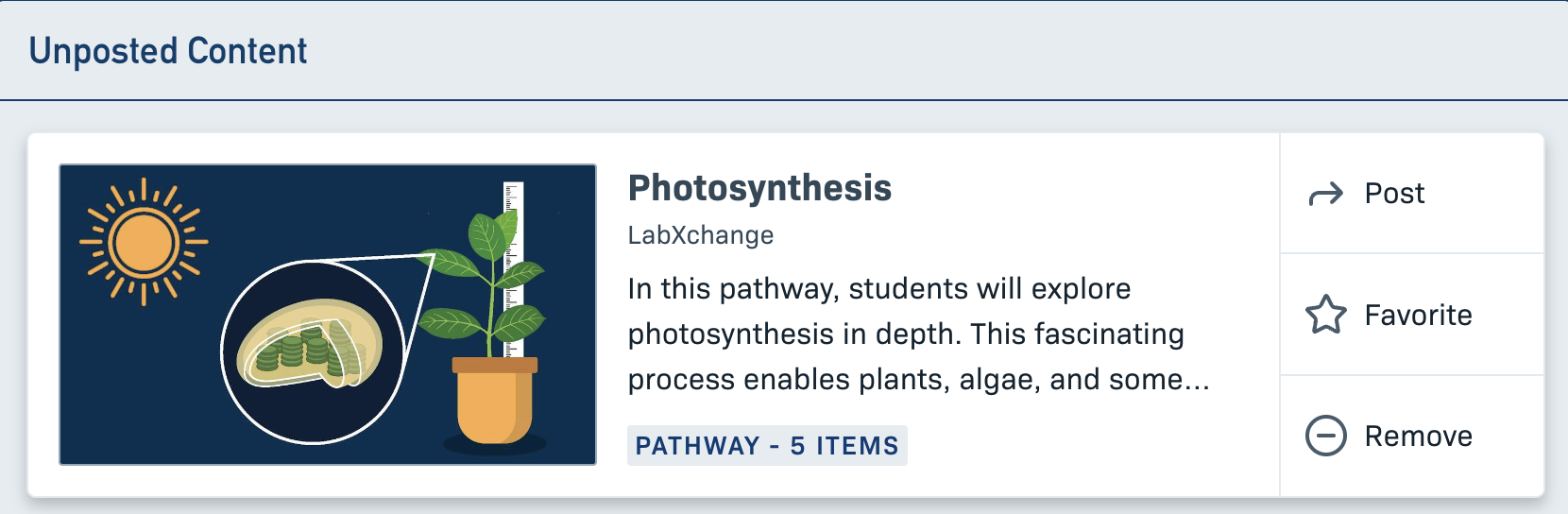
Once you have decided on content to assign to your class, you can add the item(s). This will place the selected items to your content page and in the "Unposted Content" section.
Once there you will need to use the Post button to assign the specific content to the class for your learners to interact with.
How do I enroll or remove learners from my class?
To add learners to your class, you will need to share the code that is automatically generated when you create a class. (You can share this code by email, in writing, or however you normally communicate with your students.) Learners will enter the code on the Classes tab of the Learner Dashboard.
To view notifications and approve or reject students' request to enroll in your class, open your class, then select "Learners." New requests will be displayed above the list of currently enrolled learners. If you need to remove a learner after they have enrolled, you can do so from the Learners section of your class.
How do I track my learners’ progress?
In each of your classes you will see a tab called Progress, where you will be able to see your class’s average percentage of content viewed and their average score on Question Sets. You can also download your learners' progress and scores as a .CSV file.
You will also be able to navigate to the Learners section to see individual learners’ progress and scores, and send them a direct message if necessary.